Calendar Time ships ready-made UI scenes in templates/calendar_time/ui/.
Instance under your UI CanvasLayer.
Assign the same GameClock used by your TimeHost.
Then adjust layout, fonts, textures, and display settings for your game.
Shared Authoring Rules
- Every template that displays calendar state expects a
GameClockassignment. - Put player-facing templates under a
CanvasLayerso they stay independent from world camera movement. - Prefer editing the exported template properties before writing custom script.
- If you duplicate a template scene, keep node references such as handle, label, and slider paths assigned in the inspector.
Missing clock or node references are authoring errors. Calendar Time reports
them through CalendarTimeLogger; see authoring-and-logging.md if your game
wants to route those messages into its own logger.
Clock Startup and Saves
GameClock.epoch and GameClock.time_scale are optional.
Leave them unset for default epoch and scale.
Set them when you need a specific authored start time such as Spring 1 at 06:00.
When loading a saved game, restore clock state before the game starts ticking.
Saved clock data replaces the destination clock's authored epoch and elapsed time.
Bind UI templates after load or tolerate one frame of startup refresh.
Included Templates
| Template | Purpose |
|---|---|
date_time_display.tscn |
Full date and time display. |
date_time_display_minimal.tscn |
Compact date and time display. |
time_of_day_display.tscn |
Current named time-of-day display. |
calendar_month_display.tscn |
Calendar month display. |
time_dial/time_dial.tscn |
Circular time-of-day dial. |
game_clock_speed_control.tscn |
Calendar clock speed control. |
Calendar Month Template
Instance templates/calendar_time/ui/calendar_month_display.tscn under
your UI CanvasLayer, then assign its clock property to the same GameClock
used by your TimeHost. The scene assigns its own bundled theme, so it keeps
the intended layout and contrast even when your project has no root theme.
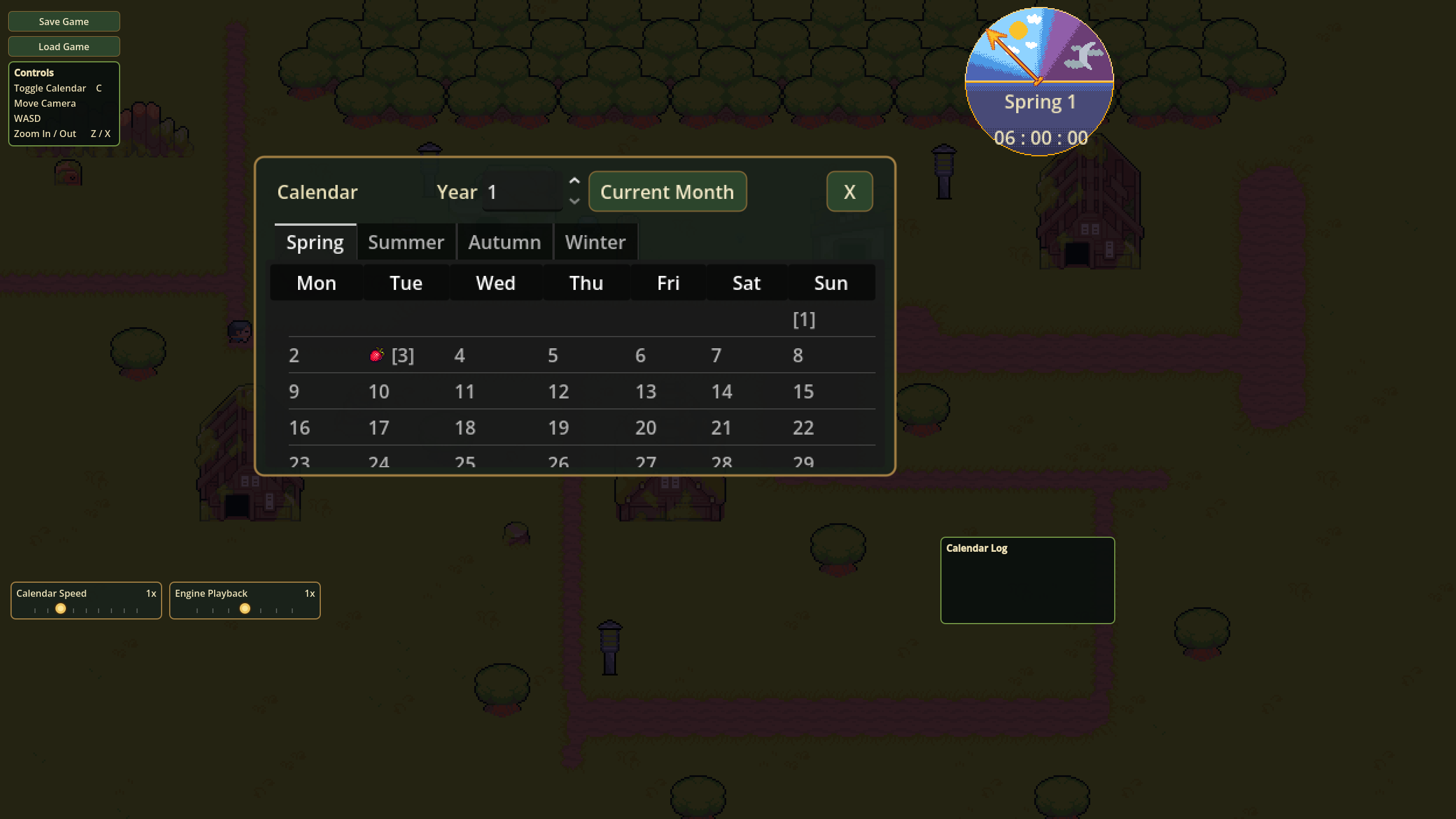
The header provides Previous Month, Current Month, Next Month, year selection,
and Close controls. Previous and Next wrap using the active GameCalendar's
month count. The default toggle_action is calendar; define that action under
Project Settings → Input Map if you want the shortcut. If the action is
missing, Calendar Time warns once and disables the shortcut. Set
toggle_action to an empty string to disable the shortcut intentionally, or
change it if your project uses another action name. Header controls and month
tabs also have an authored keyboard/gamepad focus order.
Restyle Without Editing the Addon
The two main customization resources are:
templates/calendar_time/resources/theme/four_seasons_theme.tresfor the full Four Seasons UI language: HUD panels and buttons plus the calendar header, tabs, grid, focus, scrollbars, and tooltip styling. The calendar and the sibling demo controls intentionally share this one theme resource.templates/calendar_time/resources/settings/month_table_settings.tresfor weekday titles, row height, current-day colors and marker, event-day color and indicator, and empty-cell treatment.
Duplicate the calendar scene, shared theme, and settings resource into your
own game folder. Assign the duplicated theme to the scene root and the
duplicated settings to month_table.tscn (or to your own duplicated
month-table scene).
This keeps your changes separate from plugin/template updates and does not
require editing anything under addons/calendar_time.
The calendar-only SVGs live beside the theme under
resources/theme/calendar/. You can replace those icons while preserving the
same theme properties, or point the theme and settings at your own textures.
Custom Calendars
The display reads month count, month names, days per month, and week length from GameCalendar.
It does not assume Gregorian names or twelve months.
Duplicate settings and replace column_titles for another week length.
Missing titles fall back to Day 4, Day 5, and so on.
Long names and calendars with many months use the tab bar's scroll controls, so the panel stays within the viewport. Check your longest localized month names at the smallest viewport your game supports before shipping.
Day States
Normal days use the grid theme.
Event days add an icon or dot plus accent color and tooltip.
The current day uses contrasting fill, foreground, and a short marker.
When the current day is also an event, both treatments remain visible.
Time Dial Pointer Art
time_dial/time_dial.tscn uses time_dial/handle.png. That bundled handle
points visually up when its rotation_degrees is 0, so the template's
default handle rotation range is 270 -> 450:
- start of the shown range, usually midnight: points left
- midpoint, usually noon: points up
- end of the shown range: points right
If you replace the pointer PNG, check the direction your art points at
rotation_degrees = 0. Then adjust start_handle_rotation_degrees and
end_handle_rotation_degrees until the start, midpoint, and end positions land
where your dial art expects. For example, pointer art that already points left
at 0 degrees can usually use 0 -> 180 for the same upper-half sweep.
The clockwise export controls sweep direction. Leave it enabled for the
default left-to-right upper arc.